How to Improve Countdown Timer Quality in Emails
You want one thing: a countdown timer that looks sharp in real emails, not only in the editor. If your timer looks blurry, pixelated, has halos, dots, or strange edges, it is almost always a settings issue. The fixes below are fast and predictable, once you know what to look for.
Start here (30 seconds)
1) Increase size
Use L or XL. If Responsive is ON, go even bigger.
2) Enable Retina Ready
Sharper on high-DPI screens. Then increase size again if needed.
3) Re-copy embed code
Old code keeps old CSS. Replace it in your email.
Most "blurry timer" cases are simply a small GIF being stretched by email layout. Make the source bigger, and the timer becomes sharp.
Common Quality Issues at a Glance
| What you see | Most likely cause | Fast fix |
|---|---|---|
| Blurry or pixelated | Small base size and Responsive stretching | Use L or XL, enable Retina, re-copy code |
| Soft on Retina screens | 1x image on 2x display | Enable Retina Ready and increase size |
| Halo around numbers | Wrong matte background with transparency | Use solid background or match the matte color |
| Dots, dirty edges | Low contrast or color quantization in GIF | Increase contrast, avoid near-identical colors |
| Holes inside digits | Text color merges with transparent palette | Avoid transparency or change text color |
| Looks bad in Gmail Dark Mode | Gmail inverts colors unpredictably | Use Dark Mode setup |
Quick Checklist
- 1Use L or XL (or increase Custom). Small source images will not look sharp when stretched.
- 2Enable Retina Ready for 2x crispness, then increase size to keep the same visual width.
- 3Match timer background color to your email background. Use solid background for best results.
- 4If Responsive is ON, assume the image will stretch. Start with a larger size to prevent blur.
- 5After any change, re-copy embed code. Old code still uses old settings.
Timer Size Too Small
Most blurry timers are simply stretched GIFs
A countdown timer is a GIF image. If it is created too small and then stretched by the email layout, it will look blurry or pixelated. Email clients do not upscale images gracefully. They stretch pixels.
What usually happens:
- You create a timer at size S or M
- You enable Responsive in embed settings
- The email container is wider than the GIF
- The timer stretches to fill width
- Result: blur
Fix that works every time:
- Switch to size L or XL
- If you need Responsive, go even bigger (XL or high Custom)
- Re-copy the embed code
Size options:
Recommendation: L or XL
If Responsive is ON, aim for XL or high Custom.
Simple mental model
If your email shows the timer at 500px width, your GIF should be generated around that size (or larger with Retina). A 250px GIF stretched to 500px will look soft.
Fix: Increase the size to L or XL (or higher Custom). Then re-copy embed code.
Retina Ready Not Enabled
Sharper on MacBooks, iPhones, and high-DPI displays
High-DPI screens show more pixels in the same physical space. A standard 1x image can look a little soft. Retina Ready fixes this by showing the GIF at half of its generated size.
How Retina Ready works:
- The GIF is generated larger
- The embed code forces a smaller display width
- Edges look cleaner because there are more pixels per shape
When enabled, the embed code includes CSS like this: style="width:250px!important;"
If your timer image is 500px, it will display at 250px. That is expected. Increase the timer size to keep the same visual width.
Common mistake
People enable Retina Ready, see the timer becomes smaller, and stretch it manually. Better approach: increase size in settings, then re-copy the code.
Fix: Enable Retina Ready, increase size to compensate, then re-copy embed code.
Wrong Background Color with Transparency
The most common reason you see jagged edges on dark backgrounds
This issue is caused by how GIF handles transparency. GIF does not support true (alpha) transparency. To make digits look smooth, the timer uses anti-aliasing, which blends the edge pixels into a background color. That background color is effectively baked into the GIF.
What happens in real emails:
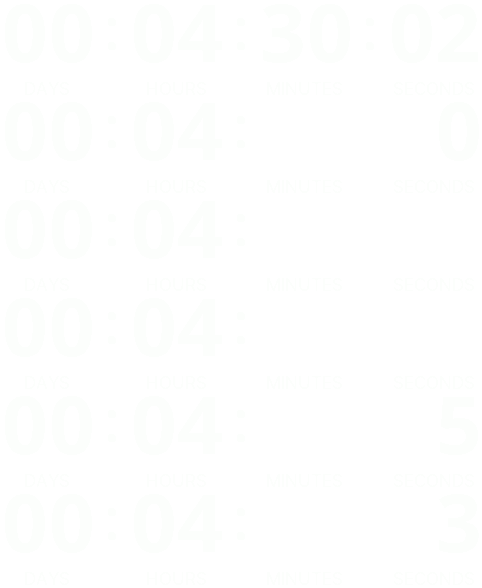
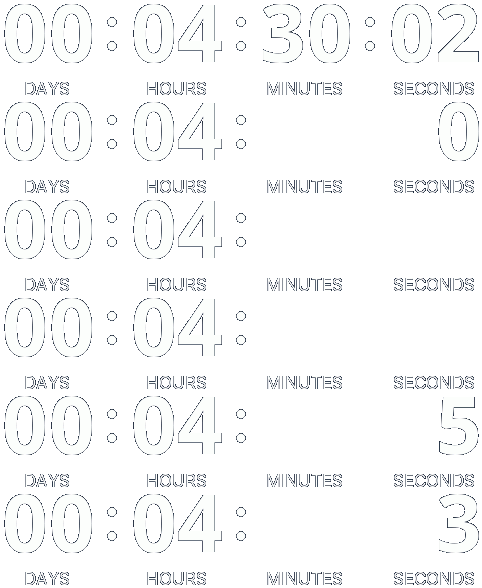
In the example on the right, the timer is placed on a black email section. The user simply wanted white digits on a dark background. But the timer background color was left as the default light gray.
The timer uses anti-aliasing to smooth the edges of digits. These edge pixels were blended into gray, not black. When the GIF is displayed on black, those gray edge pixels become visible. The digits look rough, with noisy edges and artifacts.
If the background color had been set to black, the edge pixels would blend into black and become invisible. The digits would look clean and smooth.
Solutions:
Best: use a solid background
If the timer sits on a solid color (black section, white section, brand color), set the timer background to that exact color. This makes anti-aliasing blend correctly and removes rough edges.
If you need transparency: match the matte color
If you keep transparency, still set the background color to the same color behind the timer. This is the color used for smoothing, so it must match the real email background.
Quick check: If your timer is meant to sit on a dark section, set the timer background color to that same dark color, not the default gray.
Responsive Mode Stretching
Useful, but it can amplify quality problems
Responsive mode adds style="width:100%!important;" so the timer fills the email width. This is great for mobile layouts, but it can stretch a small GIF and make it look blurry.
When Responsive causes blur:
- Small base size
- Wide email container
- Timer stretches beyond its natural pixel size
How to use Responsive safely:
- Start with XL or high Custom size
- Enable Retina Ready if you want maximum sharpness
- If you need a fixed look, disable Responsive
Tip: If you do not need full width, disable Responsive and control max-width manually for consistent results.
Text and Background Colors Too Similar
Dots, dirty edges, and sometimes holes inside digits
GIF uses a limited color palette. If your text color is very close to the background, the image can lose subtle edge pixels. With transparency, this can get worse and may even produce holes inside numbers when colors collapse into the same palette entry.
If you see dots
Increase contrast slightly. Make text a bit darker or lighter.
If edges look dirty
Avoid near-identical colors. Solid background helps.
If digits have holes
Disable transparency or change the text color.
Rule of thumb: If you can barely see the text against the background in the editor, GIF will likely produce artifacts in email.
Embed Code Not Updated
A surprisingly common reason the fix "does not work"
Your embed code contains the final CSS values (width, max-width, sometimes display rules). If you change settings but keep using the old embed code, your email will still render the old version.
Fix: Copy the embed code again after changes, and replace it in your email template.
Gmail Dark Mode Issues
A separate problem with its own solutions
If your timer looks fine everywhere except Gmail in Dark Mode, this is not a size problem. Gmail can invert colors and change how your email is displayed. Use a Dark Mode-specific setup.
We have a dedicated guide for this
Gmail Dark Mode is an environment email senders cannot fully control. Our guide explains why this happens and how to reduce the impact.
Read: How to Handle Dark Mode in GmailStep-by-Step: Fix a Blurry Timer
Open your timer settings
Work from the real timer, not an old email template
Increase the base size
Use L, XL, or higher Custom. If Responsive is ON, start bigger.
Set background correctly
Solid background is cleanest. If transparent, match the matte color.
Enable Retina Ready
Then increase size if the timer becomes too small.
Re-copy the embed code
Replace the old code in your email. Old code keeps old CSS.
Send a test email
Check desktop and mobile before sending to your list
Frequently Asked Questions
Why does my timer look sharp in the editor but blurry in the email?
The editor shows the GIF at its native size. In email, the layout can stretch the image (especially with Responsive mode). If the GIF is small, stretching makes it blurry. Increase size to L or XL, then re-copy the embed code.
Do I need Retina Ready?
If you care about sharpness on MacBooks, iPhones, and modern screens, yes. Retina Ready displays the GIF at half size for a cleaner look. After enabling it, increase size to keep the same visual width.
Should I use transparent or solid background?
Solid background gives the cleanest result when your email background is consistent. Transparency is useful when the timer sits on multiple backgrounds, but you must match the matte background color to avoid halos.
Why do I see dots, dirty edges, or jagged pixels?
This usually means low contrast, wrong matte background, or GIF palette limitations. Increase contrast slightly and avoid near-identical colors for text and background. Solid background often fixes it instantly.
Why do I see holes inside digits?
With transparency and limited GIF palette, colors can merge and parts of the digit can become transparent. Fix it by disabling transparency or changing the text color to a more distinct shade.
I changed settings but nothing improved. Why?
You are likely still using old embed code. Re-copy the embed code and replace it in your email template.
Summary
Most timer quality issues come from stretching a small GIF, using transparency with a mismatched matte background, or using near-identical colors that break anti-aliasing in GIF. For best-in-class GIF results: use a larger size (L or XL), enable Retina Ready, prefer solid background when possible, re-copy embed code after changes, and test in a real email.